
🎯 Overview
The IPA Knowledge Base allows your organization to upload company-specific documentation that IPA can reference when answering questions and performing actions.
Documents such as SOPs, policies, procedures, and operational guidelines can be uploaded to provide IPA with information unique to your organization.
When a document is uploaded, IPA can:
- Answer questions using information from the document
- Cite the source document in responses
- Identify operational rules contained within the document
- Apply those rules during applicable actions
🔗 Inspect Point Assistant — Overview
🔗 Inspect Point Assistant — Knowledge Base Overview
🚀 Accessing the IPA Knowledge Base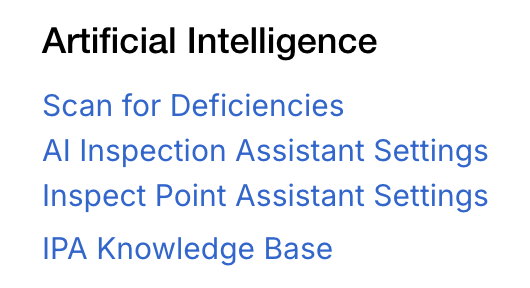
To access the IPA Knowledge Base:
- Navigate to Backend Settings
- Under the Artificial Intelligence section
- Click IPA Knowledge Base
🔄 Understanding Documents vs. Rules
Before uploading your first document, it's important to understand the difference between documents and rules.
Documents provide information that IPA can reference when answering questions. Examples include standard operating procedures (SOPs), internal policies, and other team guidelines.
Rules are instructions IPA can apply automatically when performing actions. Rules can be extracted from uploaded documents and/or created manually by an administrator.
A single uploaded document may result in both additional knowledge and new operational rules.
⚠️ Important: Documents and rules are managed separately. Deleting a document does not automatically remove any rules that were extracted from it.
⬆️ Uploading a Document
Step 1: Open the IPA Widget
Documents are uploaded directly through the IPA chat interface—there is no need to navigate to Settings before uploading.
Step 2: Enter Your Upload Request
In the chat, enter a prompt requesting that IPA upload the attached document to the Knowledge Base.
Example: Please upload the attached file as a document to the IPA Knowledge Base Documents.
Step 3: Attach Your File
Click the ➕ icon in the lower-left corner of the chat window and select your document. Then submit your message to begin the upload process.
Supported file types include:
.txt.md
⚠️ Important: PDF and Word documents are not currently supported.
Step 4: Review IPA's Validation Response
IPA reviews the document and validates that it contains relevant operational content.
Before ingesting anything, IPA displays a summary of what it found, including any operational rules identified within the document.
Review the summary to confirm IPA interpreted the document correctly.
⚠️ Important: If IPA determines the document is not relevant to company operations, the file will not be ingested. Review the document to ensure it contains SOP, policy, procedural, or operational content before trying again.
Step 5: Resolve Any Conflicts
If IPA identifies a rule that conflicts with an existing active rule, it will pause the upload and display the conflict.
You'll be shown both the existing rule and the rule identified within the uploaded document.
Review the conflict and determine which rule should remain active before proceeding.
Step 6: Approve Plan
Once validation is complete and any conflicts have been resolved, IPA will ask for approval before ingesting the document.
After confirmation:
- The document becomes available for company-specific questions
- Extracted operational rules become active
- The document is added to the IPA Knowledge Base
Step 7: Verify What Was Extracted
To review the results of the upload:
- Navigate to Backend Settings → Artificial Intelligence → IPA Knowledge Base
- Open the Rules tab to review any operational rules IPA extracted from the document.
- Open the Docs tab to verify the document was added successfully and to view its contents.
You can add, edit, or delete rules at any time from the Rules tab.
💡 Tips
- Start with a simple SOP or process document before uploading your entire document library. This makes it easier to review extracted rules and understand how IPA interprets your organization's procedures.
- Use clear, direct language whenever possible. Documents with well-defined processes and operational instructions are more likely to produce accurate rule extraction.
- Review extracted rules after every upload to ensure they reflect your intended processes.
- Periodically review uploaded documents and remove outdated procedures to keep your Knowledge Base current.
- Uploading additional documents expands the information IPA can reference when answering company-specific questions.
🛠️ Troubleshooting
My document won't upload
Verify the file is saved as a supported file type:
.txt.md
IPA says my document isn't relevant
IPA only ingests documents that contain company-specific operational content. Review the document and ensure it contains SOPs, policies, procedures, or other operational guidance before trying again.
No rules were extracted
Not all documents contain operational rules. If no rules are identified, the document can still be used for company-specific question-and-answer responses. You can also create rules manually from the Rules tab.
IPA says there is a rule conflict
A rule within the uploaded document conflicts with an existing active rule. Review both rules and determine which version should remain active before completing the upload.
I uploaded the wrong document
Navigate to Backend Settings → Artificial Intelligence → IPA Knowledge Base → Docs and remove the document. If any rules were extracted from that document, review the Rules tab and remove those rules if they should no longer apply.
Comments
0 comments
Article is closed for comments.