
Overview:
Inspect Point offers an integration with Brycer’s The Compliance Engine (TCE), streamlining report submission and saving you time. Here’s how to use our integration.
Connecting to TCE
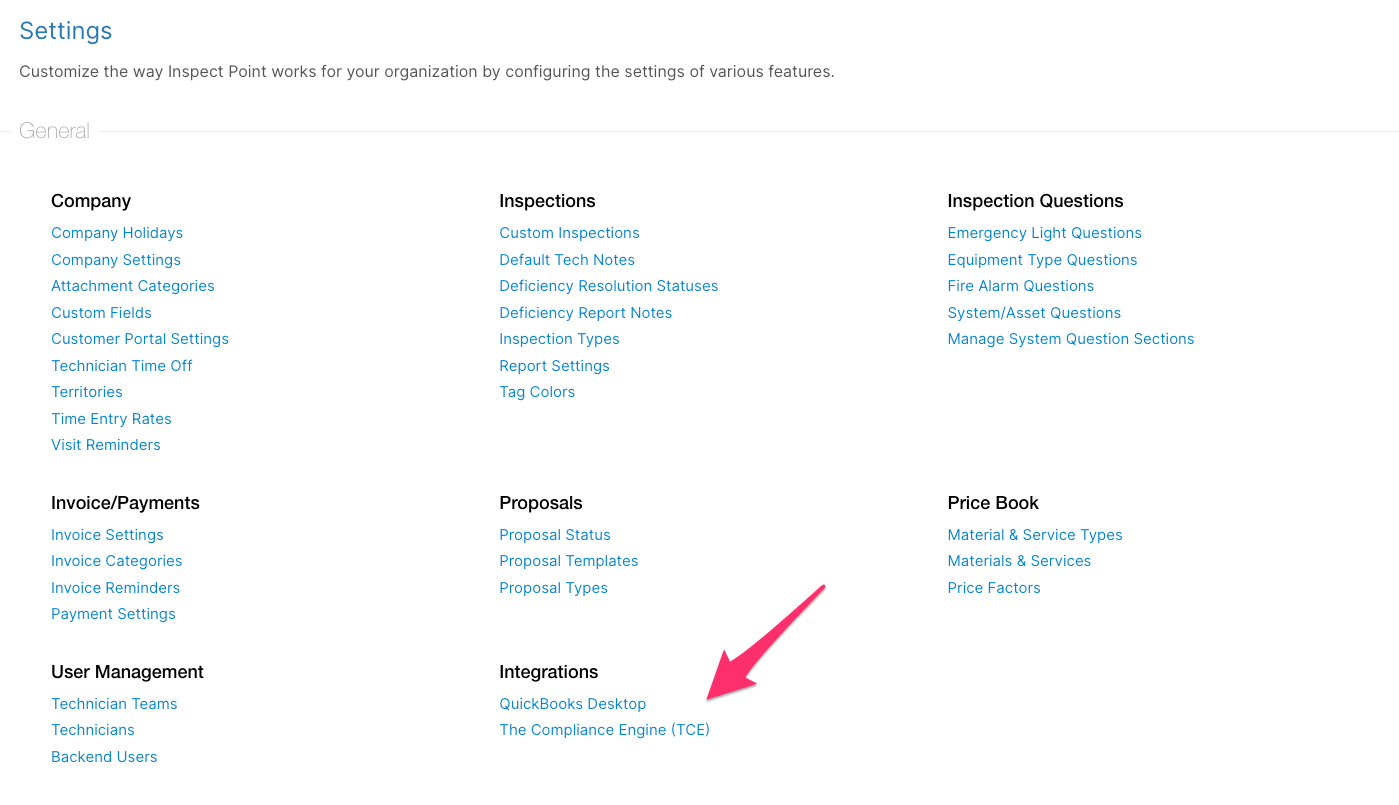
- Once the integration has been enabled in your Inspect Point instance, navigate to your settings and under the 'Integrations' section, select 'The Compliance Engine (TCE)'.
- This opens a page where you’ll be able to set-up the connection.
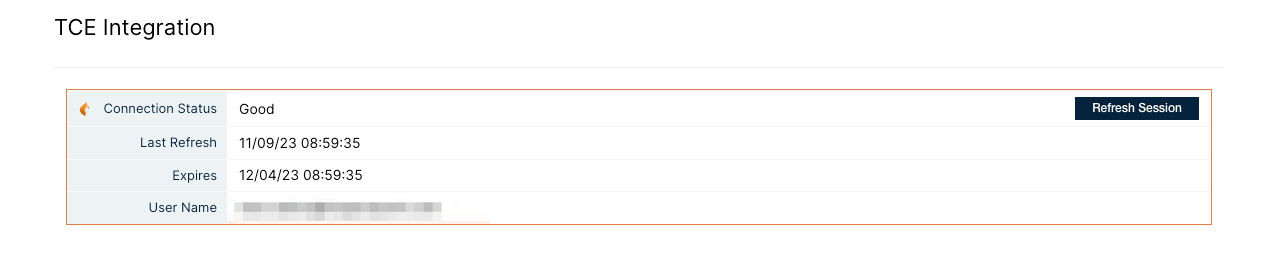
- In the future, this is where you can check the status of the integration.
- Click “Setup Connection.” You’ll be directed to log-in to TCE and then returned to this page. IMPORTANT: The user credentials used to log-in/connect must have access to ALL premises in TCE.
- Once you log-in, you will be returned to your TCE Settings Page in Inspect Point. You can reference this page to check your connection status. (Note, TCE integration uses a OAUTh based token. It refreshes the token regularly and users should not have to refresh the session, but it allows you to refresh it if needed.)
Linking a Building to a Premise
Now that you’re connected, your next step is to link an Inspect Point to a building:
- Navigate to the building you intend to link.
- In the TCE Status section, click Link TCE Premise.
- A window will appear, in which you can search various fields to find the TCE premise.
- One of three fields—Name, Address, or Reference Number—must be filled out to perform the search
- Searching by only reference number (after setting it on the premise in TCE) is the most efficient search method
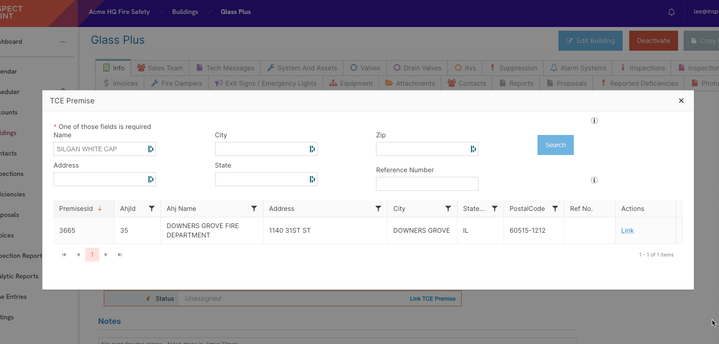
- Under Actions, click “Link” to link your Inspect Point building to the equivalent TCE premise. You can unlink at any point if needed. Now, any report on an inspection associated with this linked building can be sent to TCE.
Filtering for TCE Buildings
You can filter buildings that are linked to TCE premises using the Compliance Platform filter on the Buildings tab.
Enable the Compliance Platform Filter
Go to the Buildings tab
Click the Filter icon
In the list of available filters, check Compliance Platform
A new filter field will now appear in your filter panel
TCE-Linked Buildings
In the Compliance Platform filter, select TCE
Your building list will update to show only buildings connected to TCE premises
Submitting Reports to TCE
With the integration set up and buildings and technicians linked, you can start submitting reports to TCE.
- Navigate to the inspection detail screen tab and generate a report
An inspection report must be generated in Inspect Point before submission, you will not be able to submit a report to TCE until then.
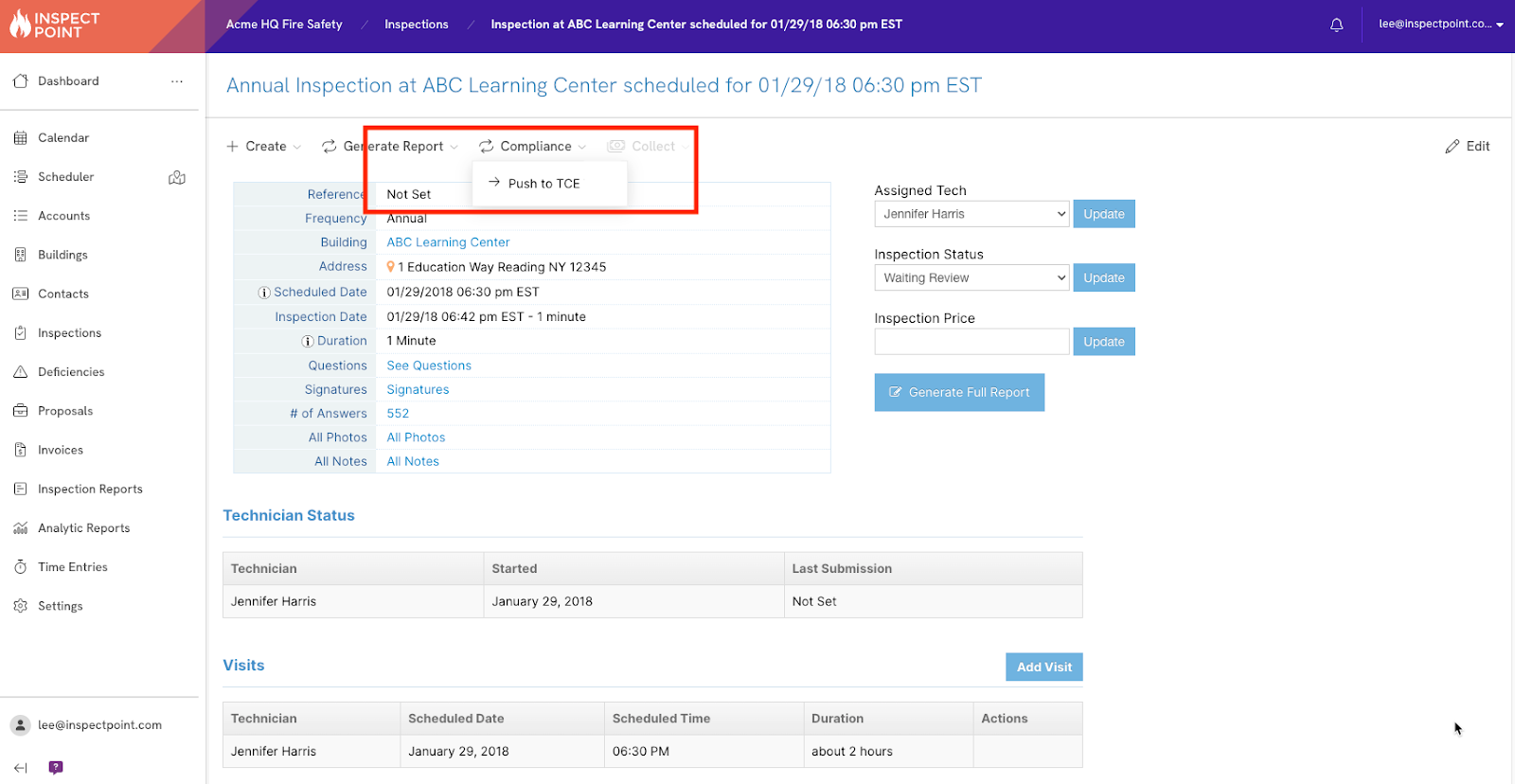
In the action bar, click Compliance, then Push to TCE
- This will open a window where you’ll need to take several steps prior to submission.
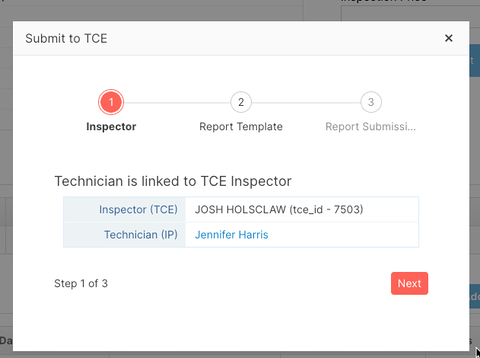
- Link the Inspect Point technician to the TCE inspector. This only needs to be done once. You can also link technicians on their profile page; see instructions later in this article. Click “Next.”
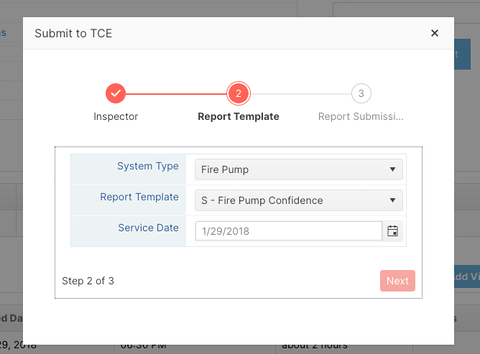
- Then select the system type. This list will populate from TCE. Inspect Point will make a suggestion, which you can edit as needed. You will also need to select from one of your TCE report templates. Finally, the service date will pre-populate from the inspection date but can also be edited if needed. Click “Next.”
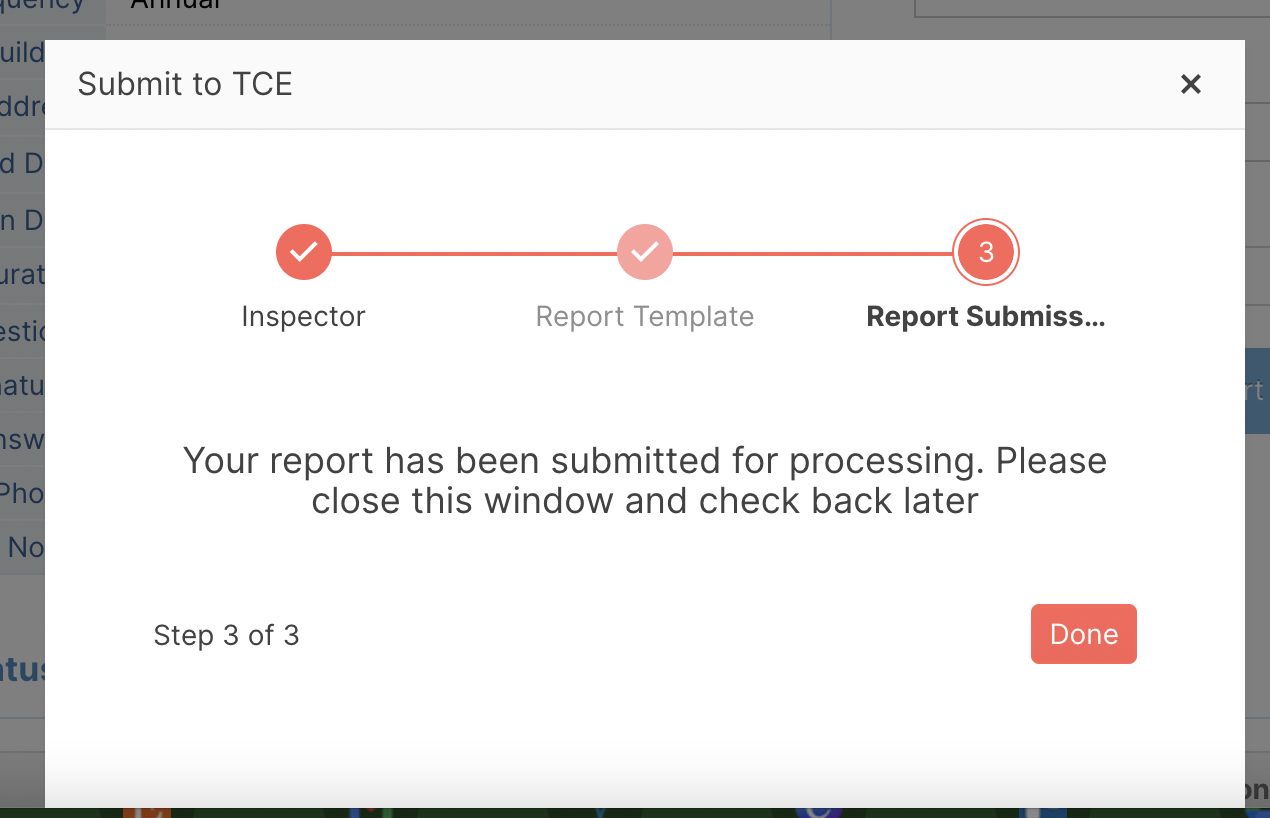
- Press “Done” on Step 3. After a few moments, you will see the inspection detail page update to reflect your submission.
Tracking Submissions
On the Inspection Detail screen, scroll to find the “Compliance Submissions” section. This provides a reference of previous submissions: the date/time, status and TCE report ID. “Message” will display any error messages or issues on the TCE side.
You can also reference the “Inspection Attachments” section for a receipt (downloadable PDF) confirming the submission to TCE.
Linking Technicians
As described above, you can link technicians to TCE inspectors when submitting a report. This only needs to be done one time. If you’d like to link techs prior to submitting, you can go to Settings -> User Management section -> Technicians and navigate to their profile.
There is a TCE section where you can link them to a TCE inspector, and unlink if needed.
Filtering for TCE Inspections
Filtering options allow you to quickly identify inspections relevant to TCE submissions, including any that may have failed and require review.
🧭 Enable TCE Filters
Before using them, the TCE filters must be added to your filter list.
Go to the Inspections tab
Click the Filter icon
In the list of available filters, enable:
TCE Inspections
Failed TCE Submissions
These filters will now display in your filter panel
Select the corresponding checkboxes to apply them
Mass Push Inspections to TCE
Once the TCE inspections are visible, you can use your filters to bulk-push inspection data to TCE.
Apply any filters you want to narrow down the inspection list (including TCE filters)
Use the checkboxes on the left to select the inspections
Click Push to TCE at the top of the page (above the Filters button)
Confirm your selection
This allows you to quickly handle larger batches of TCE submissions without opening inspections individually.
Comments
0 comments
Article is closed for comments.