
📍 Territories Overview
Territories allow you to organize and segment your Inspect Point data by region, branch, department, customer group, or any other operational structure that makes sense for your business.
When enabled, Territories help control:
- What buildings belong to a specific area or group
- Which users and technicians can access those buildings
- How records are filtered throughout Inspect Point
- Territory-specific reporting and configuration settings
Territories are optional but are especially helpful for organizations with multiple offices, service regions, or operational teams.
This article is a high-level overview of the Territory feature. Topics include:
- What Territories are and how they work
- How to create and manage Territories
- How Territories affect Buildings, Backend Users, and Technicians
- How Territory filtering works throughout Inspect Point
🌍 What Are Territories?
A Territory represents a defined segment of your organization that you want to manage independently. Common examples include branch locations, service regions, or customer groups.
Territories can be assigned to:
- Buildings
- Backend Users
- Technicians
Once assigned, Territories help determine which records users can access and what data appears throughout the platform.
Example
A company operates from three branch locations:
- Dallas
- Fort Worth
- Houston
Each branch is created as its own Territory. Buildings, technicians, and users are then assigned to the appropriate Territory, helping each office focus on the records relevant to their region.
⚙️ How Territories Work
Territories follow a simple structure:
Buildings - Each building can have:
- One Primary Territory
- Zero or more Additional Territories
Users and Technicians - Backend Users and Technicians can be assigned access to one or multiple Territories.
Access and Visibility - When Territory access is assigned:
- Users only see records associated with their assigned Territories
- Technicians only see buildings within their assigned Territories
- Territory filters become available throughout the platform
Important: Territory access controls what users can access, while Territory filters control what users are currently viewing. These are separate settings and often work together.
🔒 Admin Territory Restrictions
By default, Admin users can access all Territories. If you would like Admin users to be restricted to specific Territories, an Admin Flag is available.
Contact your Customer Success Manager to discuss enabling this option.
🏗️ Creating and Managing Territories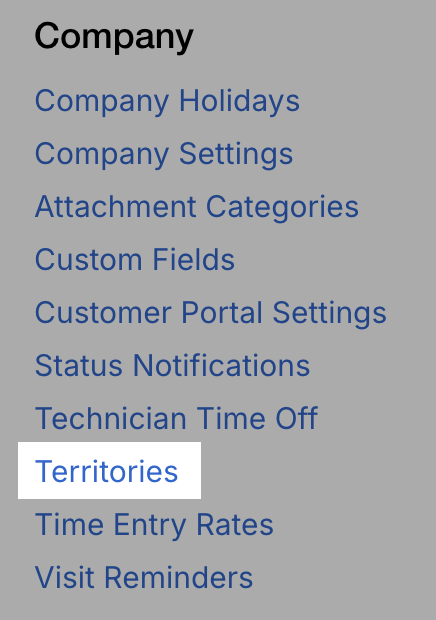
Territories are managed from:
Settings → Company Settings → Territories
From this screen, you can:
- Create new Territories
- Edit existing Territories
- Configure Territory-specific settings
Additional Territory Option
When creating or editing a Territory, you'll see the option:
Additional Territory Only (not available as primary territory on buildings)
When enabled:
- The Territory cannot be selected as a building's Primary Territory
- The Territory can still be assigned to users and technicians
- The Territory can still be assigned as an Additional Territory on buildings
This is useful for supplemental groupings that support visibility and reporting without replacing a building's primary Territory assignment.
Example
A company has a "National Accounts" team that works across multiple regions.
Rather than making National Accounts a primary Territory, they can create it as an Additional Territory and assign buildings to it alongside their regional Territory.
📝 Territory Details and Settings
After creating a Territory, click the edit icon to configure Territory-specific settings.
Available settings include:
- DBA Headers — Configure territory-specific "Doing Business As" headers for reports.
- Tag Colors — Create Territory-specific tag color schemes.
- Time Entry Rates — Configure labor rates that apply to buildings within the Territory.
- Cover Letter — Assign a Territory-specific report cover letter.
- Report Settings — Configure reporting preferences specific to that Territory.
Note: These settings apply only to buildings assigned to the Territory.
🏢 Assigning Territories to Buildings
Each building can have:
- One Primary Territory
- Multiple Additional Territories
Additional Territories allow buildings to be visible across multiple groups, offices, or regions.
Where to Configure
When creating or editing a building:
- Navigate to Building → Edit → Details
- Select a Primary Territory
- Select any Additional Territories
- Save
Note: The Primary Territory cannot also be selected as an Additional Territory.
👤 Assigning Territories to Backend Users
Backend User access is managed from:
Settings → User Management → Backend Users
Within the user's profile:
- Navigate to Territory Access
- Select one or more Territories
- Save
Users will only be able to access records associated with the Territories assigned here.
👷 Assigning Territories to Technicians
Technicians can also be assigned Territory access.
Territory assignments determine:
- Which buildings technicians can view
- Where inspections can be created
- Which records appear in schedules
Assignments can be made from:
- The Technician listing screen
- The Technician profile
Example
A technician assigned only to the North Territory will only see buildings within that Territory when working in the field.
🔍 Filtering by Territory
Territory filtering is available throughout the Inspect Point backend, including:
- Dashboard
- Buildings
- Inspections
- Calendar
- Schedule & Dispatch
- Proposals
- Deficiencies
- Reports
- Time Entries
There are two ways Territory filtering can be applied.
Option 1: Screen-Level Filtering
Many screens include a Territory filter that allows you to temporarily filter the current view.
This affects only the screen you're viewing.
Option 2: Instance-Level Territory Filtering
Users can also apply Territory filtering globally across their session.
To do so:
- Click the Globe/Settings icon in the top-right corner
- Select one or more Territories
- Save
The selected Territory filter will then apply throughout the platform.
Important: Instance-level filtering does not change a user's Territory access. It only changes what portion of their accessible data is currently displayed.
Access = What you can see
Filter = What you're currently viewing
💡 Example Use Case
A company operates from three branch offices:
- Dallas
- Fort Worth
- Houston
They create three Territories and assign:
- Buildings to the appropriate Territory
- Technicians to their service region
- Backend Users to their local office
Managers can use Territory filters to compare performance across locations while branch staff remain focused on their own region.
Result: Each branch operates independently within a single Inspect Point instance while leadership maintains visibility across the entire organization.
Comments
0 comments
Please sign in to leave a comment.